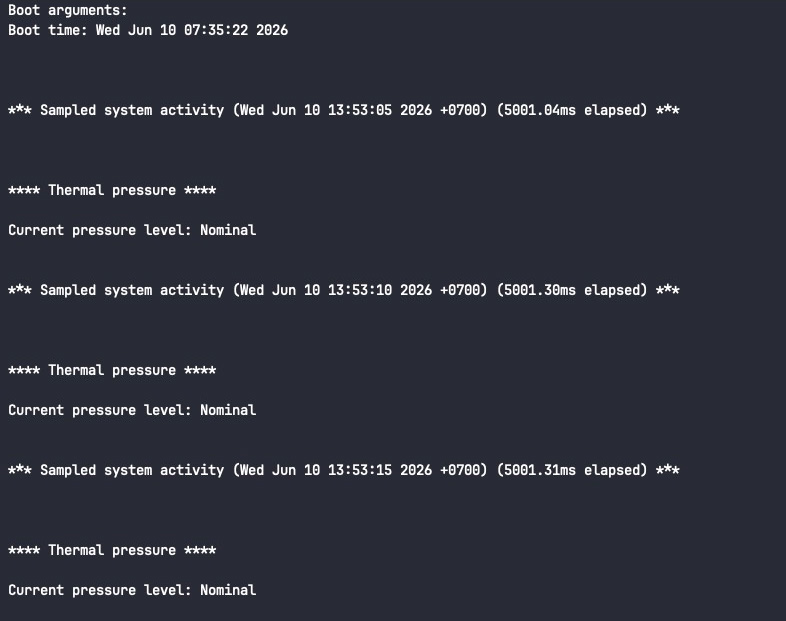
I was sitting in front of my computer this afternoon and noticed that the weather was hot and stuffy. I suddenly realized that my Mac mini was safe from the heat.
I discovered that we can check the thermals inside a Mac through the terminal. This is the quickest way without an app. It’s an instant snapshot without installing anything. Open the terminal in Mac OS and run this command.
sudo powermetrics --samplers thermalNote: it will needs us to type mac’s admin password. The cursor won’t move or show characters as you type, just type it out and hit Enter.
This will continuously stream our sytem’s real-time thermal pressure level and temperature metrics. When you’re done looking, press ctrl+C to stop the stream (if you cannot stop the stream, use another command to stop it at the bottom of this post).

In macOS thermal monitoring, “Nominal” indicates that the system is well within its safe temperature zone. There is absolutely no risk of overheating right now, and your Mac isn’t slowing itself down (throttling) to stay cool. It is running at 100% of its intended performance capacity.
To give you an idea of what to watch out for as the weather changes, here is how macOS categorizes thermal pressure:
Nominal: Normal. The system is cool, and performance is optimal.
Fair: The Mac is warming up. Fans (if your Mac has them) might spin a little faster, but performance isn’t being restricted yet.
Serious: The Mac is getting quite hot. The system will begin slightly reducing CPU/GPU speeds (thermal throttling) to generate less heat.
Critical: The Mac is dangerously hot. Performance will drop significantly to protect the hardware, and if the temperature keeps rising, the system will automatically shut down to prevent permanent damage.
As long as that terminal readout says Nominal, you can keep working without worrying about the ambient room temperature affecting your machine. The ambient temperature for macis between 50° and 95° F (10° and 35° C)
Another command to stop the thermal stream
If the ctrl+c command in terminal does not work, use below instead
sudo killall -9 powermetrics